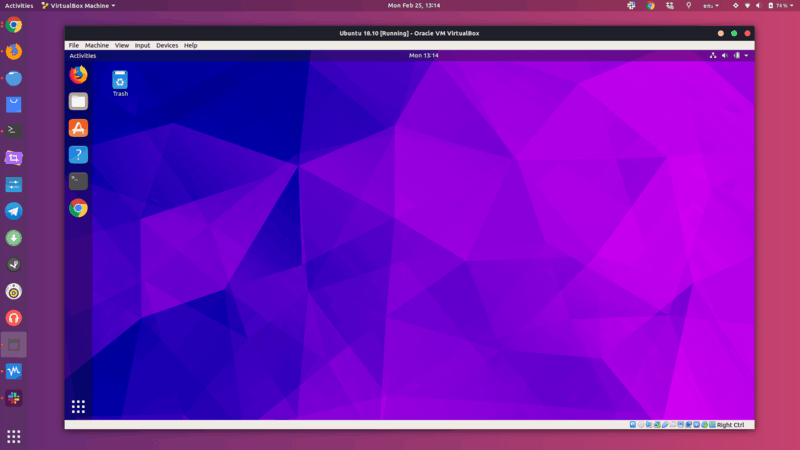
Oracle’s free and open-source offering VirtualBox is an excellent virtualization tool, especially for desktop operating systems. I prefer using it over VMWare Workstation in Linux, another virtualization tool.
For example, you can install Linux on VirtualBox inside Windows. Similarly, you can also install Windows inside Linux using VirtualBox.
Installing VirtualBox on Ubuntu and Debian-based Linux distributions
Method 1: Install VirtualBox from Ubuntu Repository
Pros: Easy installation
Cons: Installs older version
The easiest way to install VirtualBox on Ubuntu is to search for it in the Software Center and install it from there.

You can also install it from the command line using this command:
sudo apt install virtualboxMethod 2: Install VirtualBox using deb file from Oracle’s website
Pros: Easily install the latest version
Cons: Can’t upgrade to newer version
If you want to use the latest version of VirtualBox on Ubuntu, the easiest way would be to use the deb file.

You just have to download this deb file and double click on it to install it. It’s as simple as that.
Download virtualbox for Ubuntu
Method 3: Install VirtualBox using Oracle’s repository
Pros: Automatically updates with system updates
Cons: Slightly complicated installation
First, add the key for the repository. You can download and add the key using this single command.
wget -q https://www.virtualbox.org/download/oracle_vbox_2016.asc -O- | sudo apt-key add -Important for Mint users
The next step will work for Ubuntu only. If you’re using Linux Mint or some other distribution based on Ubuntu, replace $(lsb_release -cs) in the command with the Ubuntu version your current version is based on. For example, Linux Mint 19 series users should use bionic and Mint 18 series users should use xenial. Something like this:

sudo add-apt-repository “deb [arch=amd64] http://download.virtualbox.org/virtualbox/debian bionic contrib“
Now add the Oracle VirtualBox repository to the list of repositories using this command:
sudo add-apt-repository "deb [arch=amd64] http://download.virtualbox.org/virtualbox/debian $(lsb_release -cs) contrib"If you’ve read my article on checking your Ubuntu version, you probably know that ‘lsb_release -cs’ will print the codename of your Ubuntu system.
Now that you have the correct repository added, refresh the list of packages available through these repositories and install VirtualBox.
sudo apt update && sudo apt install virtualbox-6.0and then install virtualbox-extenction packnya secara manual
 Bengkel IT